Cybersecurity and identity management illustration with a security shield, SailPoint, Postman, cloud, and API integration elements.

Setting Up OAuth in SailPoint IdentityIQ Using Postman

Date Posted:

Category:

Security

Author:

Dhanasekar

Cybersecurity and identity management illustration with a security shield, SailPoint, Postman, cloud, and API integration elements.

Setting Up OAuth in SailPoint IdentityIQ Using Postman

Date Posted:

Category:

Security

Author:

Dhanasekar

Cybersecurity and identity management illustration with a security shield, SailPoint, Postman, cloud, and API integration elements.

Setting Up OAuth in SailPoint IdentityIQ Using Postman

Date Posted:

Category:

Security

Author:

Dhanasekar

Setting up and Testing OAuth in SailPoint IdentityIQ Using Postman

Introduction 

This blog describes how to configure OAuth in IdentityIQ and test it using Postman. 

Step 1: Create OAuth Client in IdentityIQ 

OAuth client has to be created in IdentityIQ.

Steps: 

  1. In the IdentityIQ application, navigate to Global Settings > API Authentication > OAuth Client Management.

  2. Click on Create and enter Client Name, Proxy User and save. 
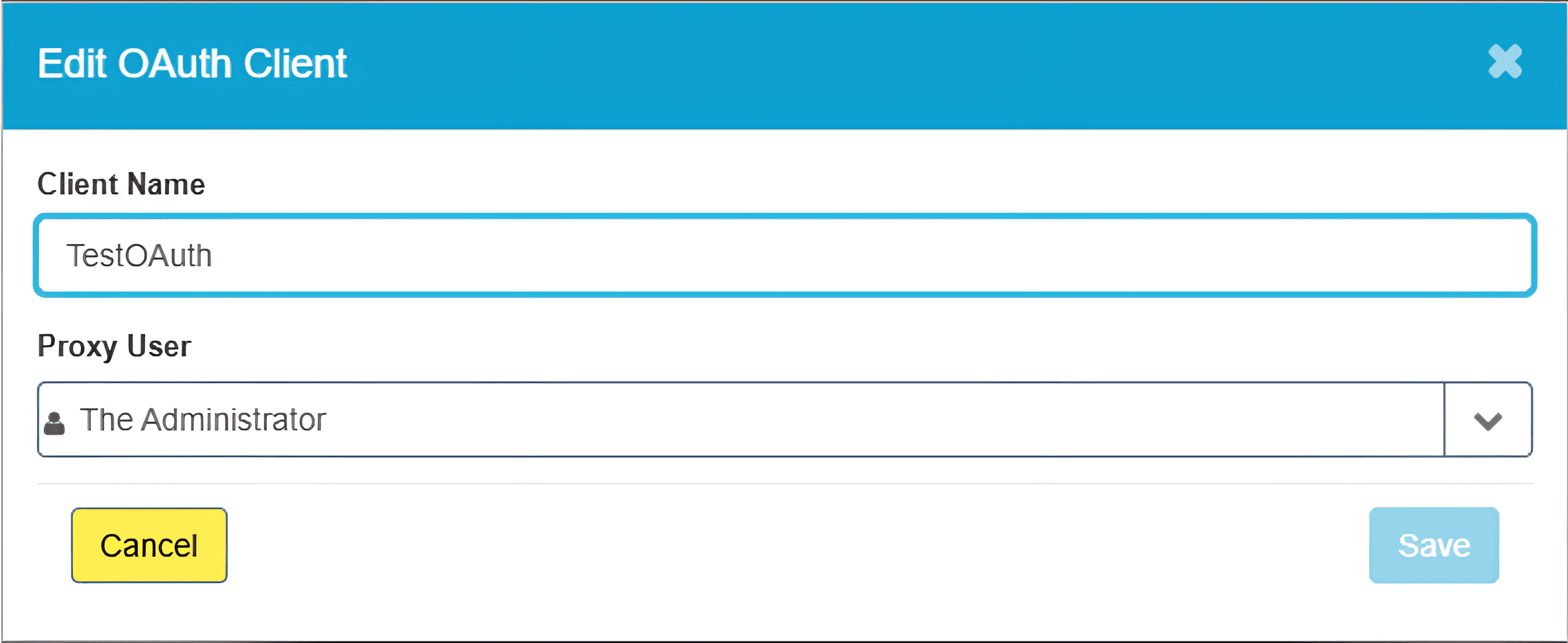
Edit OAuth Client interface window showing the configuration of client name and proxy user.
  1. Save the below information: 

  • Client ID 

  • Client Secret 

OAuth Client Management dashboard showing a list of configured clients with a red box highlighting the TestOAuth entry.

Step 2: Generate Access Token using Postman 

Next, the OAuth access token is generated using Postman.

1. Open Postman and enter: 

Method: POST 

URL: http://localhost:8080/identityiq/oauth2/token 

2. Go to "Authorization" tab: 

Auth type: Basic 

Username: Client ID 

Password: Client Secret 
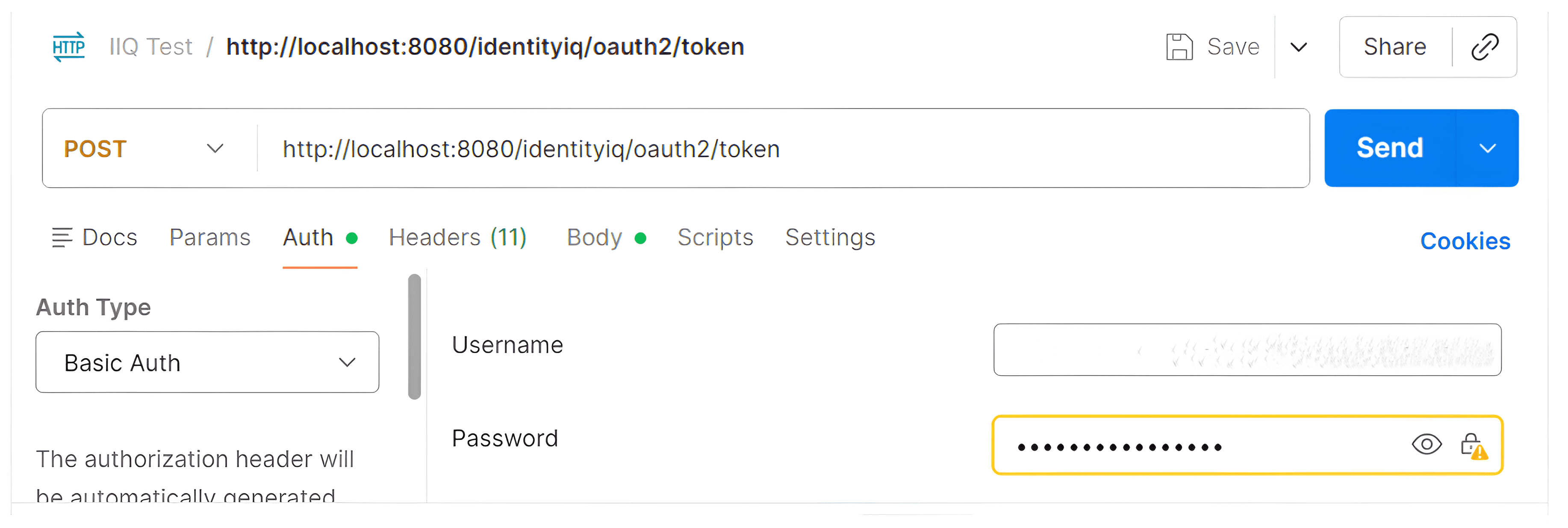
An API client interface showing a POST request configured for a SailPoint IdentityIQ OAuth2 token endpoint with Basic Authentication credentials

3. Go to "Body" tab: 

Key: grant_type 

Value: client_credentials 
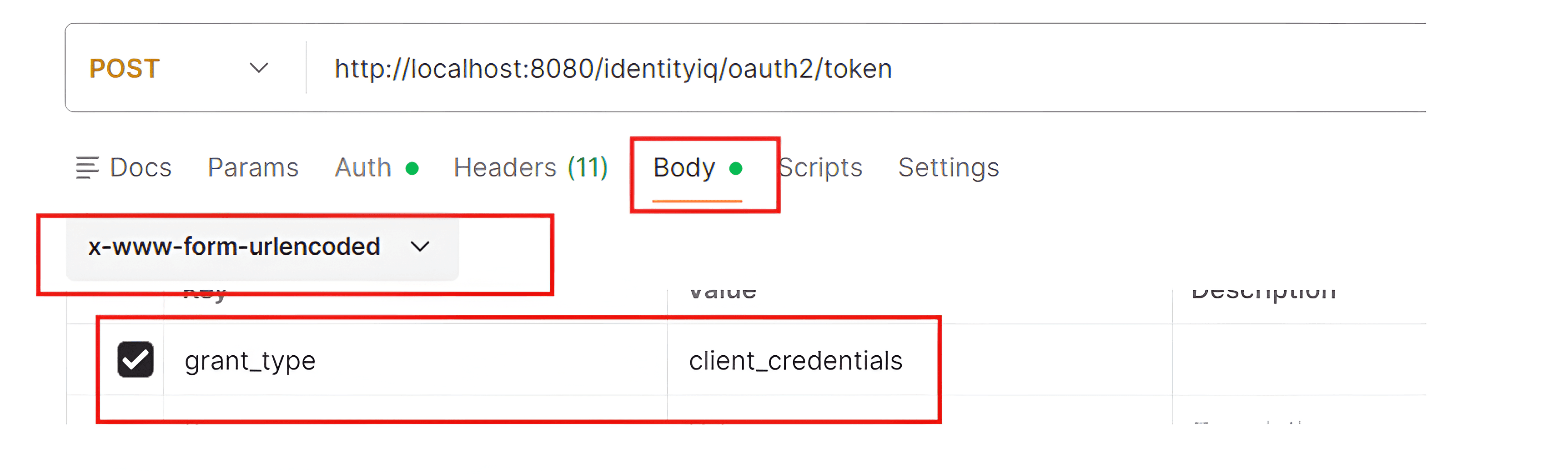
An API client interface highlighting the Body configuration of a POST request with the content type x-www-form-urlencoded and a key-value pair for grant_type set to client_credentials.

4. Click on "Send". 

Copy the "access_token". 
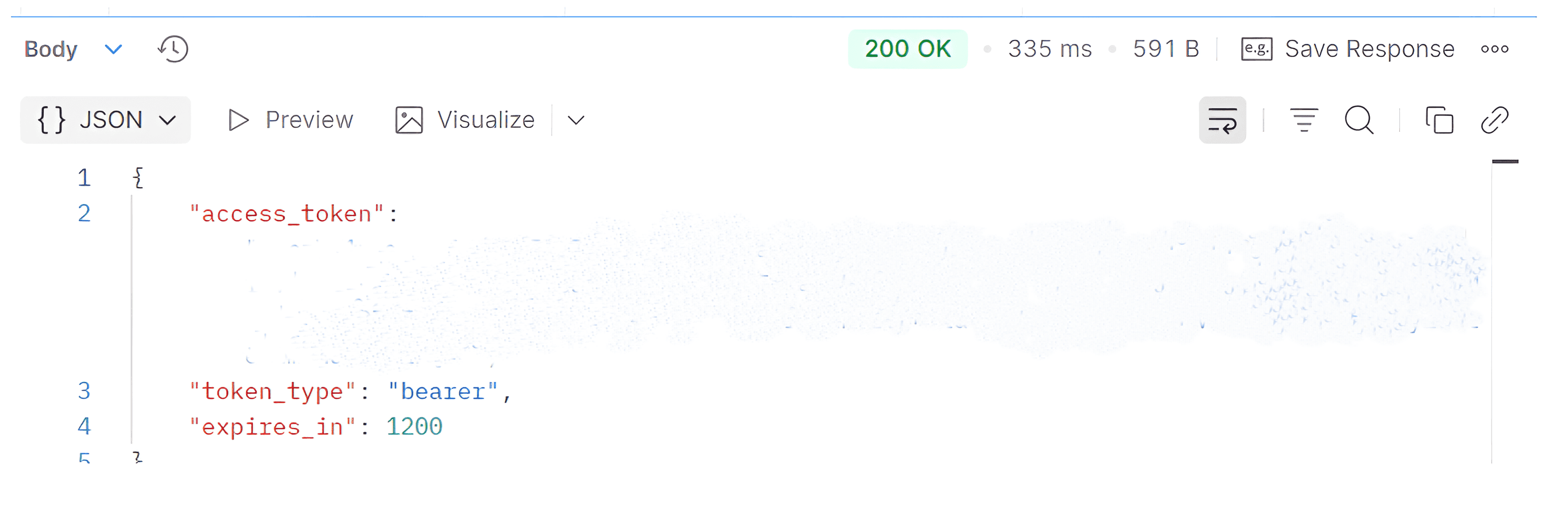
An API client response window showing a successful 200 OK status code with a JSON payload containing an access_token, token_type bearer, and expires_in duration.

Step 3: Test IdentityIQ API using Access Token 

Now test the API using the access token. 

Method: GET 

URL:  http://localhost:8080/identityiq/scim/v2/Users 

Go to the Authorization tab: 

Auth type: Bearer Token 

Paste: access_token 
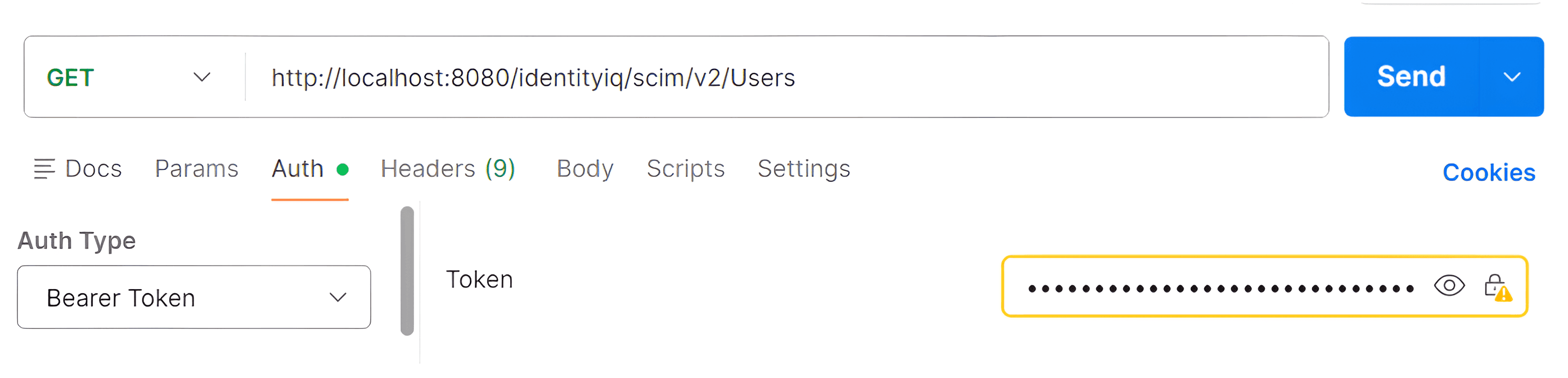
An API client interface showing a GET request configured for a SailPoint IdentityIQ SCIM v2 Users endpoint using Bearer Token authorization.

Click Send. You will see a list of IdentityIQ users. 
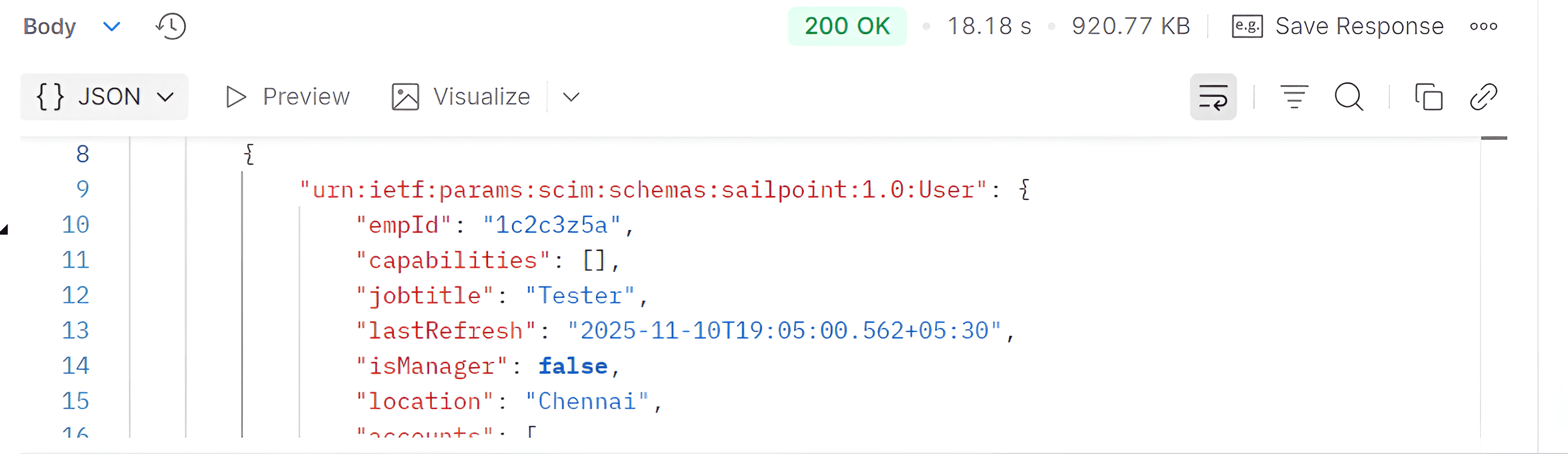
API client response showing a 200 OK status with a JSON payload of SailPoint SCIM user details.

Conclusion: 

In the context of the SailPoint IdentityIQ application, the OAuth authentication process is beneficial in the sense that the API access is possible without the use of end-user credentials. It is possible to access the IdentityIQ API securely using the OAuth client and access token generated using Postman.


Stay tuned to our blog to see more posts about

Sailpoint products implementation and its related updates.

Stay tuned to our blog to see more posts about

Sailpoint products implementation and its related updates.

Category:

Security

Stay tuned to our blog to see more posts about

Sailpoint products implementation and its related updates.

Stay tuned to our blog to see more posts about

Sailpoint products implementation and its related updates.

Category:

Category:

Security

Security

Get your

Tailored Quote for your

Organisation

Get your

Tailored Quote for your

Organisation

Setting up and Testing OAuth in SailPoint IdentityIQ Using Postman

Introduction 

This blog describes how to configure OAuth in IdentityIQ and test it using Postman. 

Step 1: Create OAuth Client in IdentityIQ 

OAuth client has to be created in IdentityIQ.

Steps: 

  1. In the IdentityIQ application, navigate to Global Settings > API Authentication > OAuth Client Management.

  2. Click on Create and enter Client Name, Proxy User and save. 

Edit OAuth Client interface window showing the configuration of client name and proxy user.
  1. Save the below information: 

  • Client ID 

  • Client Secret 

OAuth Client Management dashboard showing a list of configured clients with a red box highlighting the TestOAuth entry.

Step 2: Generate Access Token using Postman 

Next, the OAuth access token is generated using Postman.

1. Open Postman and enter: 

Method: POST 

URL: http://localhost:8080/identityiq/oauth2/token 

2. Go to "Authorization" tab: 

Auth type: Basic 

Username: Client ID 

Password: Client Secret 

An API client interface showing a POST request configured for a SailPoint IdentityIQ OAuth2 token endpoint with Basic Authentication credentials

3. Go to "Body" tab: 

Key: grant_type 

Value: client_credentials 

An API client interface highlighting the Body configuration of a POST request with the content type x-www-form-urlencoded and a key-value pair for grant_type set to client_credentials.

4. Click on "Send". 

Copy the "access_token". 

An API client response window showing a successful 200 OK status code with a JSON payload containing an access_token, token_type bearer, and expires_in duration.

Step 3: Test IdentityIQ API using Access Token 

Now test the API using the access token. 

Method: GET 

URL:  http://localhost:8080/identityiq/scim/v2/Users 

Go to the Authorization tab: 

Auth type: Bearer Token 

Paste: access_token 

An API client interface showing a GET request configured for a SailPoint IdentityIQ SCIM v2 Users endpoint using Bearer Token authorization.

Click Send. You will see a list of IdentityIQ users. 

API client response showing a 200 OK status with a JSON payload of SailPoint SCIM user details.

Conclusion: 

In the context of the SailPoint IdentityIQ application, the OAuth authentication process is beneficial in the sense that the API access is possible without the use of end-user credentials. It is possible to access the IdentityIQ API securely using the OAuth client and access token generated using Postman.
