Microsoft Azure Conditional Access illustration with secure authentication and device access protection.

Conditional Access in Microsoft Azure: Complete Guide

Date Posted:

Category:

Security

Author:

Kanibharathi

Microsoft Azure Conditional Access illustration with secure authentication and device access protection.

Conditional Access in Microsoft Azure: Complete Guide

Date Posted:

Category:

Security

Author:

Kanibharathi

Microsoft Azure Conditional Access illustration with secure authentication and device access protection.

Conditional Access in Microsoft Azure: Complete Guide

Date Posted:

Category:

Security

Author:

Kanibharathi

Get your Tailored Quote for your Organisation

Get your Tailored Quote for your Organisation

Get your Tailored Quote for your Organisation

Introduction

Traditional security methods are no longer adequate in today’s world. The Zero Trust security approach is becoming more popular among organizations. This method makes sure that each person, device, and access request is continuously verified before allowing access to vital resources.
In Microsoft Azure, Conditional Access is essential in putting Zero Trust principles into practice. It functions as a policy-based access control engine that instantly assesses signals including location, risk level, device compliance, and user identity. It enforces appropriate access decisions based on these conditions, which can include giving access, demanding multi-factor authentication, or completely barring access.
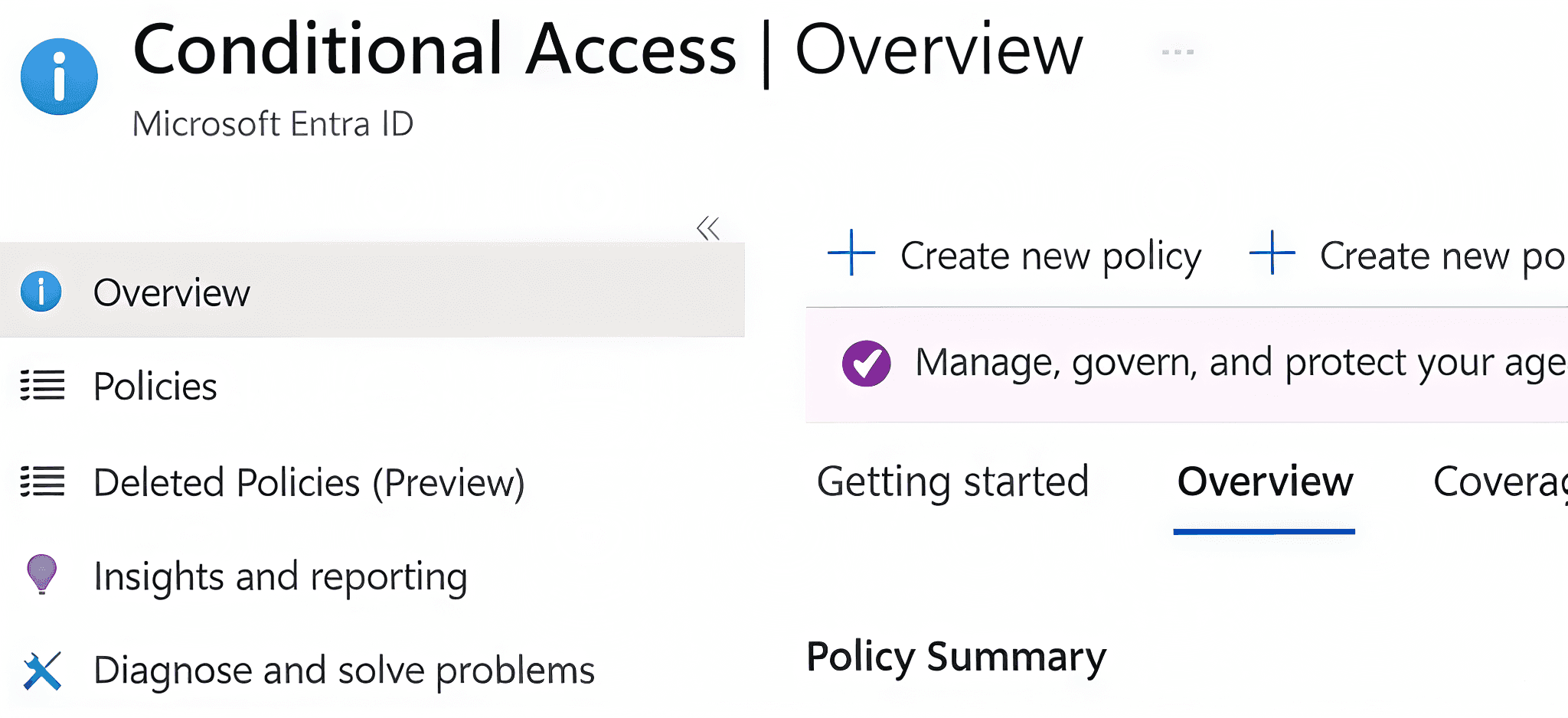
Microsoft Entra ID Conditional Access overview page for managing security policies and access controls.

Components for creating the conditional access policy

Assignments

Users and groups

This defines the people who are going to be targeted in this policy. Including/ excluding the users can be done in this field.

We can apply a policy only for administrators while excluding regular users.

Target application

This included the cloud applications and user actions. In this field, we can provide: What applications or services does the policy apply to.

Network

In order to detect unauthorized access to the application, this field gets the location, IP address, and designates certain locations as trusted locations.
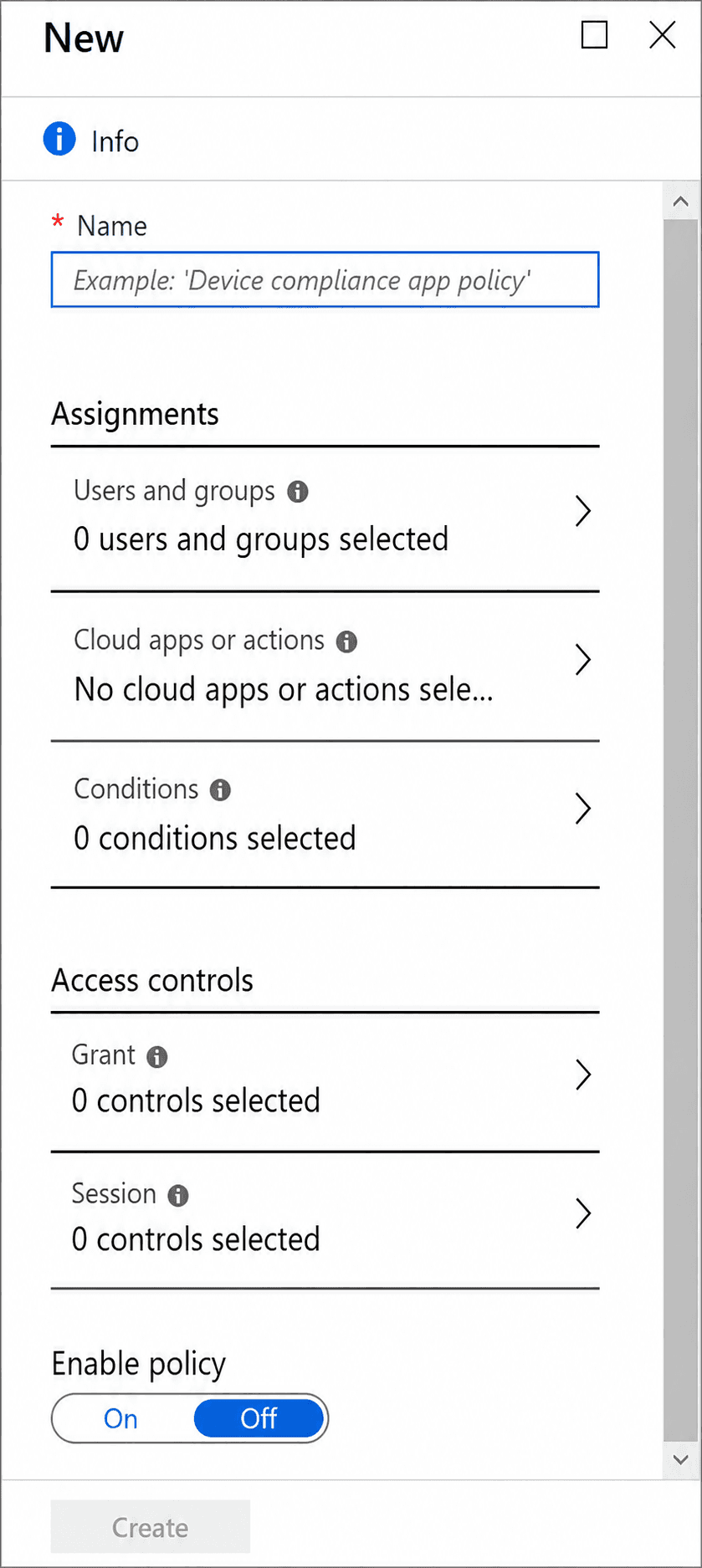
Microsoft Azure Conditional Access policy configuration page for users, cloud apps, conditions, and access controls.

Access controls

This indicates whether the access needs to be granted or blocked. The field provides the details of how the policy needs to be enforced.

Session controls

Session controls define what users can do after they are granted access. While assignments determine who and when, session controls govern the user experience and restrictions during an active session, aligning closely with Zero Trust principles.

It passes device information to these apps, allowing them to enforce restrictions such as:

  • Full access on compliant devices.

  • Limited access (e.g., web-only, no downloads) on unmanaged devices.

Example: Users on personal devices can view the contents of a work email but cannot download attachments.

Use Conditional Access App Control

This provides advanced, real-time session monitoring and control.

Example: Prevent users from downloading confidential documents when accessing from outside the corporate network.

Sign-in Frequency

 In this we can specify how frequently users must re-authenticate and change the default authentication behavior with this parameter.

For instance, mandate that users sign in to important apps every eight hours.

Conditions

Agent risk

Agent risk assesses the probability of a compromised device agent or session.

Assist in identifying questionable or perhaps compromised sessions and increases the level of verification beyond user identity.

For instance, if the session exhibits indications of compromise, block access.

Risk to Users

The possibility that a user account has been compromised is indicated by user risk.

Based on indicators such as compromised credentials or questionable behavior. This aids in enforcing stricter regulations for high-risk users.

For instance, require high-risk users to update their passwords or use MFA.

Risk of Sign-in

The probability that a legitimate user will not attempt to log in is measured by sign-in risk.

Based on irregularities like strange places or unfeasible travel.

Real-time evaluation during authentication.

For instance, use MFA to block or contest dangerous sign-ins.

Device platforms

Organization may use multiple operating systems. Certain policies needs to be enforced on different operating system.

Client apps

Administrators can regulate how users access programs with the aid of the Client Apps condition. This condition concentrates on the kind of application or protocol utilized during sign-in rather than just who and where.
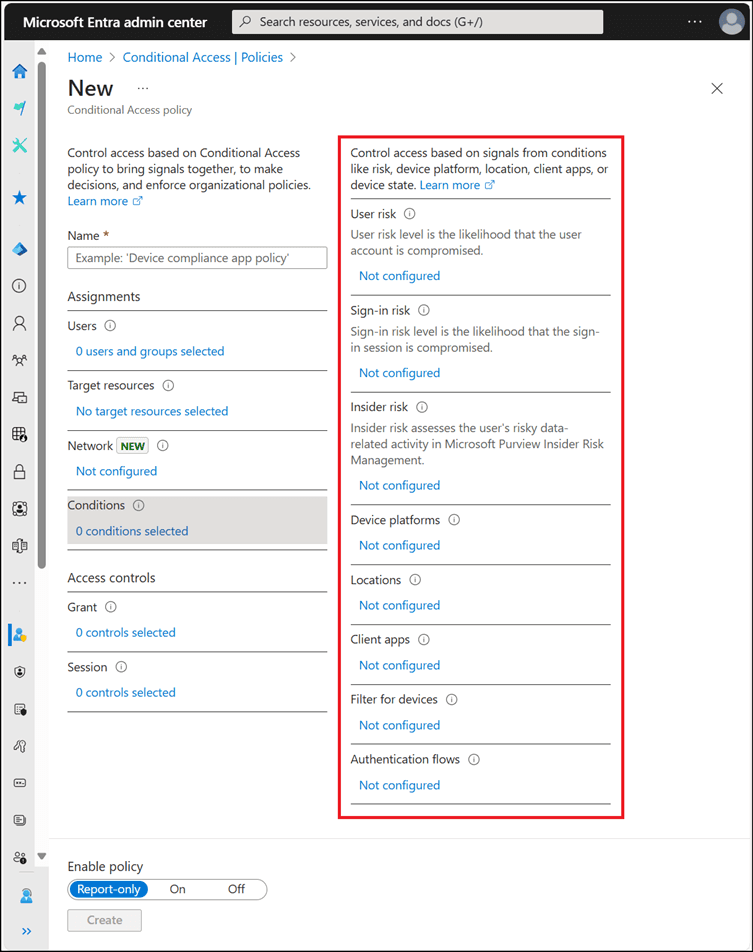
Screenshot of available conditions for a Conditional Access policy in the Microsoft Entra admin center.

Filter for devices

Administrators can apply policies based on particular device properties by using the Filter for Devices condition.

Conclusion

Organizations can make intelligent decisions based on real-time data like user behavior, device health, location, and threat intelligence, thanks to features like client app control, device filtering, risk-based rules, and session limitations. The combination of these features makes it difficult to hack the vital access items. Admins need to be careful when using “block all resources” in a single policy. This could lock out the admins, and it is advised not to create a policy for each application, this will make it difficult to manage.


Stay tuned to our blog to see more posts about

Sailpoint products implementation and its related updates.

Stay tuned to our blog to see more posts about SailPoint products implementation and its related updates.

Category:

Category:

Security

Security

Introduction

Traditional security methods are no longer adequate in today’s world. The Zero Trust security approach is becoming more popular among organizations. This method makes sure that each person, device, and access request is continuously verified before allowing access to vital resources.
In Microsoft Azure, Conditional Access is essential in putting Zero Trust principles into practice. It functions as a policy-based access control engine that instantly assesses signals including location, risk level, device compliance, and user identity. It enforces appropriate access decisions based on these conditions, which can include giving access, demanding multi-factor authentication, or completely barring access.

Microsoft Entra ID Conditional Access overview page for managing security policies and access controls.

Components for creating the conditional access policy

Assignments

Users and groups

This defines the people who are going to be targeted in this policy. Including/ excluding the users can be done in this field.

We can apply a policy only for administrators while excluding regular users.

Target application

This included the cloud applications and user actions. In this field, we can provide: What applications or services does the policy apply to.

Network

In order to detect unauthorized access to the application, this field gets the location, IP address, and designates certain locations as trusted locations.

Microsoft Azure Conditional Access policy configuration page for users, cloud apps, conditions, and access controls.

Access controls

This indicates whether the access needs to be granted or blocked. The field provides the details of how the policy needs to be enforced.

Session controls

Session controls define what users can do after they are granted access. While assignments determine who and when, session controls govern the user experience and restrictions during an active session, aligning closely with Zero Trust principles.

It passes device information to these apps, allowing them to enforce restrictions such as:

  • Full access on compliant devices.

  • Limited access (e.g., web-only, no downloads) on unmanaged devices.

Example: Users on personal devices can view the contents of a work email but cannot download attachments.

Use Conditional Access App Control

This provides advanced, real-time session monitoring and control.

Example: Prevent users from downloading confidential documents when accessing from outside the corporate network.

Sign-in Frequency

 In this we can specify how frequently users must re-authenticate and change the default authentication behavior with this parameter.

For instance, mandate that users sign in to important apps every eight hours.

Conditions

Agent risk

Agent risk assesses the probability of a compromised device agent or session.

Assist in identifying questionable or perhaps compromised sessions and increases the level of verification beyond user identity.

For instance, if the session exhibits indications of compromise, block access.

Risk to Users

The possibility that a user account has been compromised is indicated by user risk.

Based on indicators such as compromised credentials or questionable behavior. This aids in enforcing stricter regulations for high-risk users.

For instance, require high-risk users to update their passwords or use MFA.

Risk of Sign-in

The probability that a legitimate user will not attempt to log in is measured by sign-in risk.

Based on irregularities like strange places or unfeasible travel.

Real-time evaluation during authentication.

For instance, use MFA to block or contest dangerous sign-ins.

Device platforms

Organization may use multiple operating systems. Certain policies needs to be enforced on different operating system.

Client apps

Administrators can regulate how users access programs with the aid of the Client Apps condition. This condition concentrates on the kind of application or protocol utilized during sign-in rather than just who and where.

Screenshot of available conditions for a Conditional Access policy in the Microsoft Entra admin center.

Filter for devices

Administrators can apply policies based on particular device properties by using the Filter for Devices condition.

Conclusion

Organizations can make intelligent decisions based on real-time data like user behavior, device health, location, and threat intelligence, thanks to features like client app control, device filtering, risk-based rules, and session limitations. The combination of these features makes it difficult to hack the vital access items. Admins need to be careful when using “block all resources” in a single policy. This could lock out the admins, and it is advised not to create a policy for each application, this will make it difficult to manage.


Stay tuned to our blog to see more posts about

Sailpoint products implementation and its related updates.

Category:

Security