
Privilege Classification of Entitlements
Introduction
Privilege Classification in ISC make us to assign privilege levels to entitlements automatically through various methods.
To configure this classification user must have the Org Admin, Source-Admin or Source Sub Admin level of access.
Methods of Classification
Single privilege level for all the entitlements on a source.
SailPoint recommended privilege levels.
Custom privilege level criteria.
Prerequisites
User must have the Org Admin, Source-Admin or sub-Admin user level.
Completion of Source Configuration and Aggregation of entitlements.
Privilege Levels
High: All entitlements inside the source can have this level. It requires high level of monitoring as it is the highest level.
Medium: Admin access but not the highest and it involves completion of subset task of Admin.
Low: Basic access.
Precedence
1. Manually Overridden value
2. Privilege Classification Method
3. Default- Direct Privilege value – None
Enabling and Disabling the Automatic Privilege Classification
The implications involve override the direct privilege level and removes the manual override are available.
The privilege level set by the privilege classification method by the admin is only assigned when you Enable, without enabling you can define.
To enable or disable:
1. Go to Admin>Connections>Sources.
2. Select the Source.
3. In Entitlement Management Section>Select the Privilege Classification.
4. Set the toggle if you want to enable or set the toggle to disable if you want to disable.
Configuring Privilege Classification Method
Assign the same privilege level
1. Go to Admin>Connections>Sources.
2. Select the Source.
3. In Entitlement Management Section>Select the Privilege Classification.
4. Select the Assign Same Privilege Level to all entitlements.
5. Select Save and enable.

Using Recommendations to Assign Privilege Level
The Determination Factors
The published list in a source as privileged or not.
SailPoint processes and categorizes entitlements with a privilege level of high, medium, or low.
Steps:
1. Go to Admin>Connections>Sources.
2. Select the Source.
3. In Entitlement Management Section>Select the Privilege Classification.
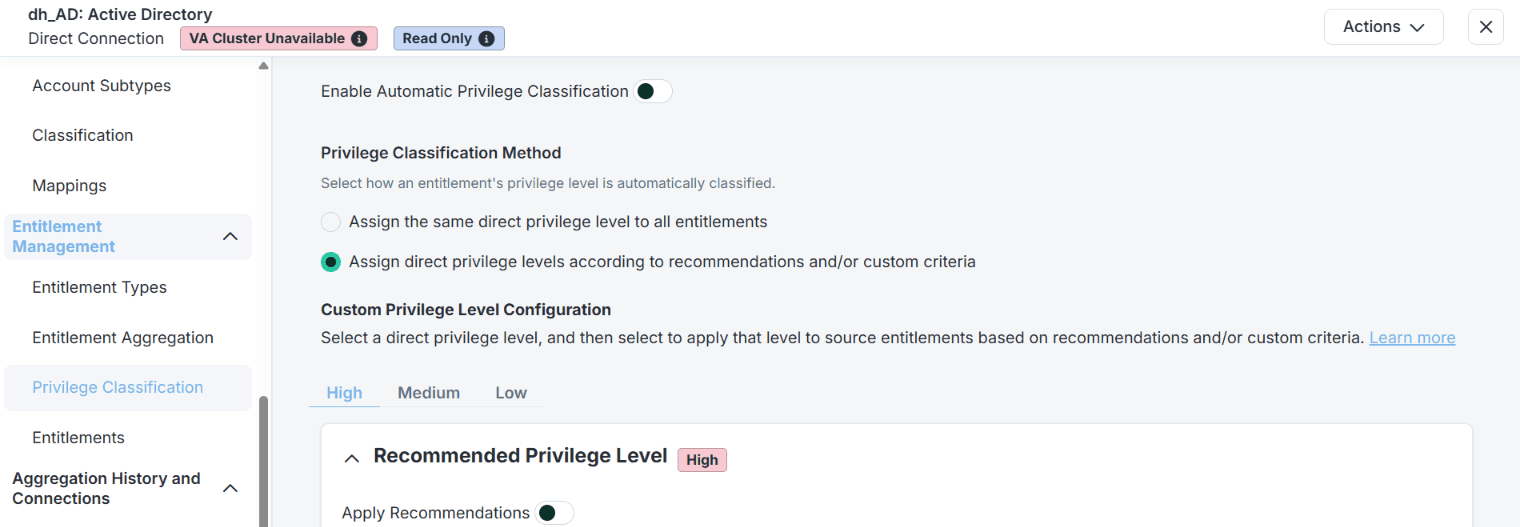
4. In the Privilege Classification Method section, select Assign direct privilege levels according to recommendations and/or custom criteria.
5. Select the direct privilege level, High, Medium, or Low, to view the recommended entitlements for the chosen direct privilege level.
6. Set the Apply Recommendations toggle to enable.
7. Select Save and enable.
Using Custom privilege level criteria
1. Go to Admin>Connections>Sources.
2. Select the Source.
3. In Entitlement Management Section>Select the Privilege Classification.
4. In the Privilege Classification Method section, select Assign direct privilege levels according to recommendations and/or custom criteria.
5. Select AND or OR between Groups.
6. Use Within Group toggle to specify AND or OR.
7. Select the Entitlement Attribute, type, and operator.
8. Use the value field (up to 50 you can use) to enter value.
9. If you require multiple criteria, Select add criteria.
10. If you want another Group, Select add Group.
11. Select Save.
Assigning Recommendations and Custom Criteria
We can use both. ISC takes the Custom criteria if it is available otherwise it goes with the recommendation. But Manual Override Value retains.
Manually Override Direct Privilege Level
1. Go to Admin>Connections>Sources.
2. Select the Source.
3. In Entitlement Management Section>Entitlements.
4. Select Entitlements check box and then Select Actions>Override Direct Privilege Level. If you want to Remove Select Actions>Remove Direct Privilege Level.
5. Select the level and Select Apply.
Conclusion
We can View the details about the operations performed from the creation and management of Privilege Classification and the assignment of privilege levels through Search within Event Types and download Audit Reports.

