Futuristic banner showing secure AI-powered identity management integration between SailPoint ISC and Claude Desktop.

Integrating SailPoint ISC with Claude Using MCP Guide

Date Posted:

Category:

Security

Author:

Sandhiya

Futuristic banner showing secure AI-powered identity management integration between SailPoint ISC and Claude Desktop.

Integrating SailPoint ISC with Claude Using MCP Guide

Date Posted:

Category:

Security

Author:

Sandhiya

Futuristic banner showing secure AI-powered identity management integration between SailPoint ISC and Claude Desktop.

Integrating SailPoint ISC with Claude Using MCP Guide

Date Posted:

Category:

Security

Author:

Sandhiya

Integrating SailPoint ISC with Claude Desktop

A Step by Step Guide Using Model Context Protocol (MCP)

Introduction

SailPoint Identity Security Cloud (ISC) supports the Model Context Protocol (MCP), enabling AI agents like Claude Desktop to interact directly with your ISC tenant, letting you manage access requests using plain, natural language.

What is Model Context Protocol (MCP)?

Model Context Protocol  is an open standard that allows AI models to securely connect to external data sources and tools. It acts as a bridge between AI agents (like Claude) and enterprise platforms (like SailPoint ISC), enabling real-time, context aware interactions.

SailPoint's MCP Server translates Claude's natural language requests into SailPoint API calls , so you can ask Claude "What can I request access to?" and get a real answer from your ISC tenant instantly.

Prerequisites

Before getting started, make sure you have the following:

  • A SailPoint ISC tenant (demo tenant works fine)

  • Claude Desktop installed (free download from claude.ai/download)

  • Node.js installed (v20+ recommended - download from nodejs.org)

  • A Personal Access Token (PAT) from your ISC tenant

Step-by-Step Integration Guide

Step 1: Install Claude Desktop

  1. Go to claude.ai/download and download the Windows installer

  2. Run the installer and sign in with your Claude account

  3. Complete the setup wizard

Step 2: Install Node.js

Node.js is required because Claude Desktop uses npx (Node's package runner) to launch the MCP server.

  1. Visit nodejs.org and download the LTS version (.msi for Windows 64-bit)

  2. Install with all default options  especially keep 'Add to PATH' checked

  3. Verify installation: open cmd and run node --version and npx --version

Step 3: Generate a Personal Access Token (PAT) in ISC

  1. Log in to your ISC tenant

  2. Click your profile icon (top right) → Preferences

  3. Go to Personal Access Tokens → New Token

  4. Name it Claude-MCP-Test and click Create

  5. Copy the Client ID and Client Secret

Then generate an OAuth access token using this curl command:

curl -X POST "https://[tenant].api.identitynow-demo.com/oauth/token?grant_type=client_credentials&client_id=YOUR_CLIENT_ID&client_secret=YOUR_CLIENT_SECRET"

Step 4: Install mcp-remote Globally

To avoid path issues on Windows, install mcp-remote globally:

npm install -g mcp-remote

Step 5: Configure Claude Desktop

Create or edit the config file at %APPDATA%\Claude\claude_desktop_config.json with the following content:

{

  "mcpServers": {

    "SailPoint MCP": {

      "command": "mcp-remote",

      "args": [

        "https://[tenant].api.identitynow-demo.com/v2025/access-requests/mcp",

        "--header",

        "Authorization: Bearer YOUR_ACCESS_TOKEN"

      ]

    }

  }

}

Step 6: Restart Claude Desktop & Verify

  1. Fully quit Claude Desktop (system tray → right-click → Quit)

  2. Reopen Claude Desktop

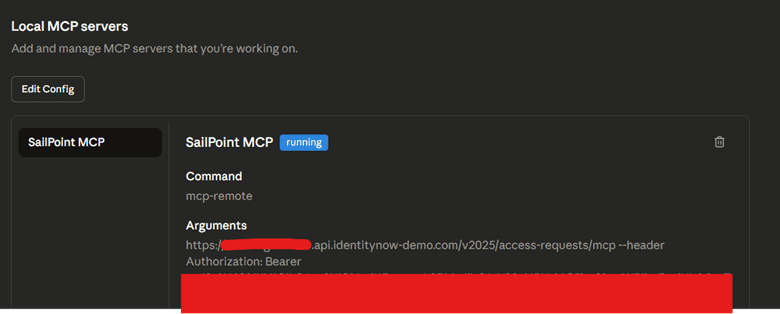
  3. Go to Settings → Developer -  you should see SailPoint MCP with a 'running' status

  4. Start a New Chat and click the '+' button to confirm SailPoint MCP is listed

SailPoint MCP running successfully in Claude Desktop:

SailPoint MCP local server configuration page showing the SailPoint MCP server in a running state, with MCP remote command settings and authorization details partially hidden.

What Can You Do with SailPoint MCP + Claude?

Once connected, you can use natural language to interact with your ISC tenant:

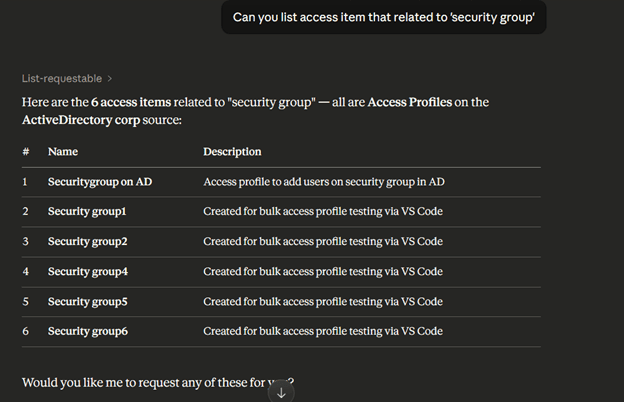
  • "What can I request access to?" - Lists all requestable items for your identity

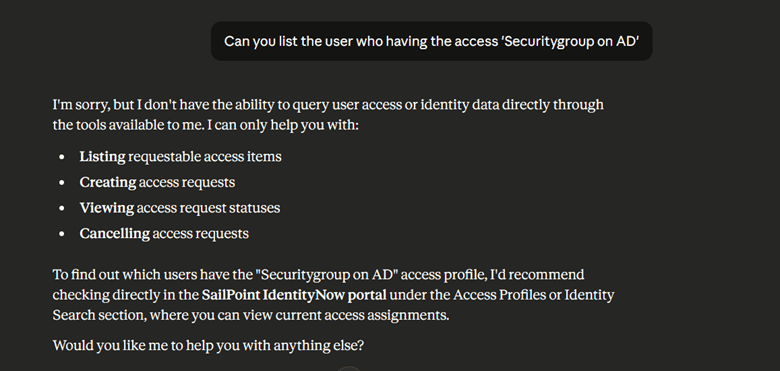
Screenshot showing SailPoint MCP listing six access items related to “security group” with names and descriptions in a table view.Screenshot showing SailPoint MCP unable to query user access data and listing supported actions like access requests and status tracking.
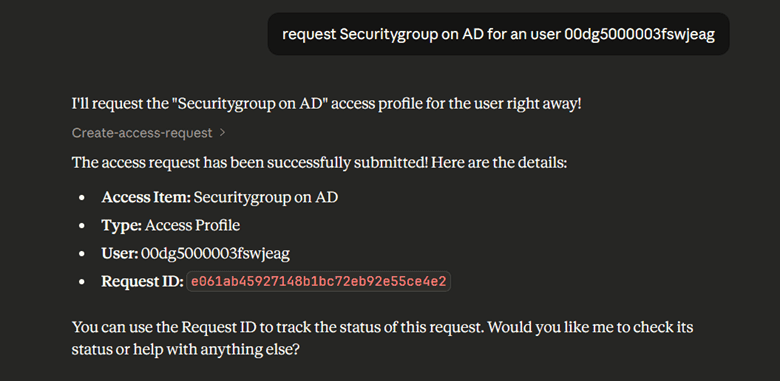
  • "Request access to [application/role]" -Initiates an access request on your behalf

Screenshot showing a successful SailPoint access request submission for “Securitygroup on AD” with request ID and user details displayed.
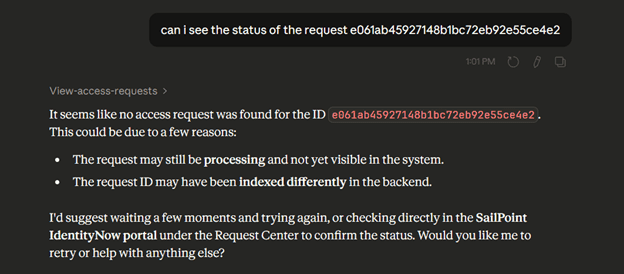
  • "What is the status of my access request?" — Queries the status of pending requests

Screenshot showing SailPoint MCP unable to find the submitted access request ID and suggesting retrying later or checking the IdentityNow portal.
  • "Cancel my pending access request" — Cancels a pending request

Challenges & How I Solved Them

  • Session token vs PAT: Session tokens don't work with MCP — you need to generate an OAuth access token using your PAT credentials

  • Windows PATH issue: Claude Desktop couldn't find npx due to spaces in 'C:\Program Files' — fixed by installing mcp-remote globally

  • Two config file locations: Claude Desktop reads from a different config location depending on the installer version used

Conclusion

Integrating SailPoint ISC with Claude Desktop via MCP opens up exciting possibilities for AI-driven identity management. With just a few configuration steps, you can interact with your ISC tenant using natural language making access requests, checking statuses, and more.


Stay tuned to our blog to see more posts about

Sailpoint products implementation and its related updates.

Stay tuned to our blog to see more posts about

Sailpoint products implementation and its related updates.

Category:

Security

Stay tuned to our blog to see more posts about

Sailpoint products implementation and its related updates.

Stay tuned to our blog to see more posts about

Sailpoint products implementation and its related updates.

Category:

Category:

Security

Security

Get your

Tailored Quote for your

Organisation

Get your

Tailored Quote for your

Organisation

Integrating SailPoint ISC with Claude Desktop

A Step by Step Guide Using Model Context Protocol (MCP)

Introduction

SailPoint Identity Security Cloud (ISC) supports the Model Context Protocol (MCP), enabling AI agents like Claude Desktop to interact directly with your ISC tenant, letting you manage access requests using plain, natural language.

What is Model Context Protocol (MCP)?

Model Context Protocol  is an open standard that allows AI models to securely connect to external data sources and tools. It acts as a bridge between AI agents (like Claude) and enterprise platforms (like SailPoint ISC), enabling real-time, context aware interactions.

SailPoint's MCP Server translates Claude's natural language requests into SailPoint API calls , so you can ask Claude "What can I request access to?" and get a real answer from your ISC tenant instantly.

Prerequisites

Before getting started, make sure you have the following:

  • A SailPoint ISC tenant (demo tenant works fine)

  • Claude Desktop installed (free download from claude.ai/download)

  • Node.js installed (v20+ recommended - download from nodejs.org)

  • A Personal Access Token (PAT) from your ISC tenant

Step-by-Step Integration Guide

Step 1: Install Claude Desktop

  1. Go to claude.ai/download and download the Windows installer

  2. Run the installer and sign in with your Claude account

  3. Complete the setup wizard

Step 2: Install Node.js

Node.js is required because Claude Desktop uses npx (Node's package runner) to launch the MCP server.

  1. Visit nodejs.org and download the LTS version (.msi for Windows 64-bit)

  2. Install with all default options  especially keep 'Add to PATH' checked

  3. Verify installation: open cmd and run node --version and npx --version

Step 3: Generate a Personal Access Token (PAT) in ISC

  1. Log in to your ISC tenant

  2. Click your profile icon (top right) → Preferences

  3. Go to Personal Access Tokens → New Token

  4. Name it Claude-MCP-Test and click Create

  5. Copy the Client ID and Client Secret

Then generate an OAuth access token using this curl command:

curl -X POST "https://[tenant].api.identitynow-demo.com/oauth/token?grant_type=client_credentials&client_id=YOUR_CLIENT_ID&client_secret=YOUR_CLIENT_SECRET"

Step 4: Install mcp-remote Globally

To avoid path issues on Windows, install mcp-remote globally:

npm install -g mcp-remote

Step 5: Configure Claude Desktop

Create or edit the config file at %APPDATA%\Claude\claude_desktop_config.json with the following content:

{

  "mcpServers": {

    "SailPoint MCP": {

      "command": "mcp-remote",

      "args": [

        "https://[tenant].api.identitynow-demo.com/v2025/access-requests/mcp",

        "--header",

        "Authorization: Bearer YOUR_ACCESS_TOKEN"

      ]

    }

  }

}

Step 6: Restart Claude Desktop & Verify

  1. Fully quit Claude Desktop (system tray → right-click → Quit)

  2. Reopen Claude Desktop

  3. Go to Settings → Developer -  you should see SailPoint MCP with a 'running' status

  4. Start a New Chat and click the '+' button to confirm SailPoint MCP is listed

SailPoint MCP running successfully in Claude Desktop:

SailPoint MCP local server configuration page showing the SailPoint MCP server in a running state, with MCP remote command settings and authorization details partially hidden.

What Can You Do with SailPoint MCP + Claude?

Once connected, you can use natural language to interact with your ISC tenant:

  • "What can I request access to?" - Lists all requestable items for your identity

Screenshot showing SailPoint MCP listing six access items related to “security group” with names and descriptions in a table view.Screenshot showing SailPoint MCP unable to query user access data and listing supported actions like access requests and status tracking.
  • "Request access to [application/role]" -Initiates an access request on your behalf

Screenshot showing a successful SailPoint access request submission for “Securitygroup on AD” with request ID and user details displayed.
  • "What is the status of my access request?" — Queries the status of pending requests

Screenshot showing SailPoint MCP unable to find the submitted access request ID and suggesting retrying later or checking the IdentityNow portal.
  • "Cancel my pending access request" — Cancels a pending request

Challenges & How I Solved Them

  • Session token vs PAT: Session tokens don't work with MCP — you need to generate an OAuth access token using your PAT credentials

  • Windows PATH issue: Claude Desktop couldn't find npx due to spaces in 'C:\Program Files' — fixed by installing mcp-remote globally

  • Two config file locations: Claude Desktop reads from a different config location depending on the installer version used

Conclusion

Integrating SailPoint ISC with Claude Desktop via MCP opens up exciting possibilities for AI-driven identity management. With just a few configuration steps, you can interact with your ISC tenant using natural language making access requests, checking statuses, and more.