
Salesforce Account Freeze and Unfreeze Guide
Date Posted:
Category:
Security
Author:
Valarmathi

Salesforce Account Freeze and Unfreeze Guide
Date Posted:
Category:
Security
Author:
Valarmathi

Salesforce Account Freeze and Unfreeze Guide
Date Posted:
Category:
Security
Author:
Valarmathi
Get your Tailored Quote for your Organisation
Automating Salesforce Account Freeze & Unfreeze Using SailPoint ISC Workflow
In identity governance, the most Important operation is controlling the user access from their account level. When an employee Moves to Leaver state, violates a policy, there is any change in Roll criteria Their cell Salesforce Account Should be restricted Using Freeze and unfreeze Option Present in Salesforce.
Using Salesforce Configuration, we can see about how freeze and unfreeze option natively worked on Salesforce. We can verify the attribute changes via SailPoint ISC account aggregation and we can explore how SailPoint works via Workflow automation using http request action to update the freeze and unfreeze Attribute.
Salesforce Account Freeze and Unfreeze
In Salesforce freeze and unfreeze option Is the build in future Inside user accounts. This is different from deactivating an account. The frozen account Prevents the user from logging in. This option won’t permanently remove their profiles license or associated accounts.
Why Freeze Instead of Deactivate?
Deactivating a Salesforce user will remove their license, profiles or an account. It may impact on their records, automation and integration. So, the best is the freezing option.
Immediately blocks login access
Preserves all user data, licenses, and configurations
Is fully reversible — the account can be unfrozen instantly
Does not trigger any license reallocation
Is ideal for temporary suspensions, investigations, or offboarding workflows
Real-World Use Cases
Employee is going through an HR investigation freeze the account without impact for data
Account shows suspicious login activity with the use of freeze option immediately pending review
Mover scenario when an employee changes from department and access needs re-evaluation
Automated access governance triggered by lifecycle events in SailPoint ISC
How to Freeze / Unfreeze a User in Salesforce
Step 1: Navigate to User Management
To freeze a user account in Salesforce, navigate to the user management section:
Go to Setup in Salesforce
Click on Users
Select Users again from the submenu
All users will be listed here
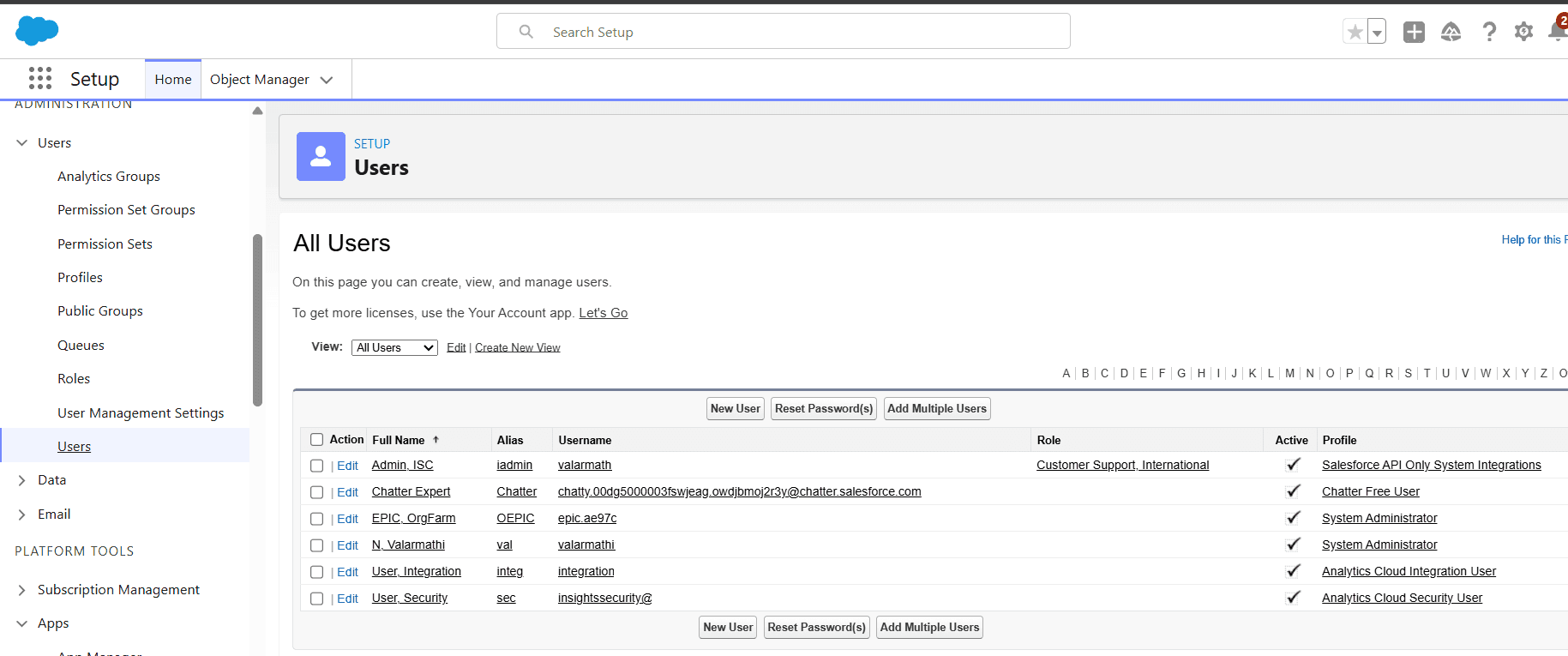
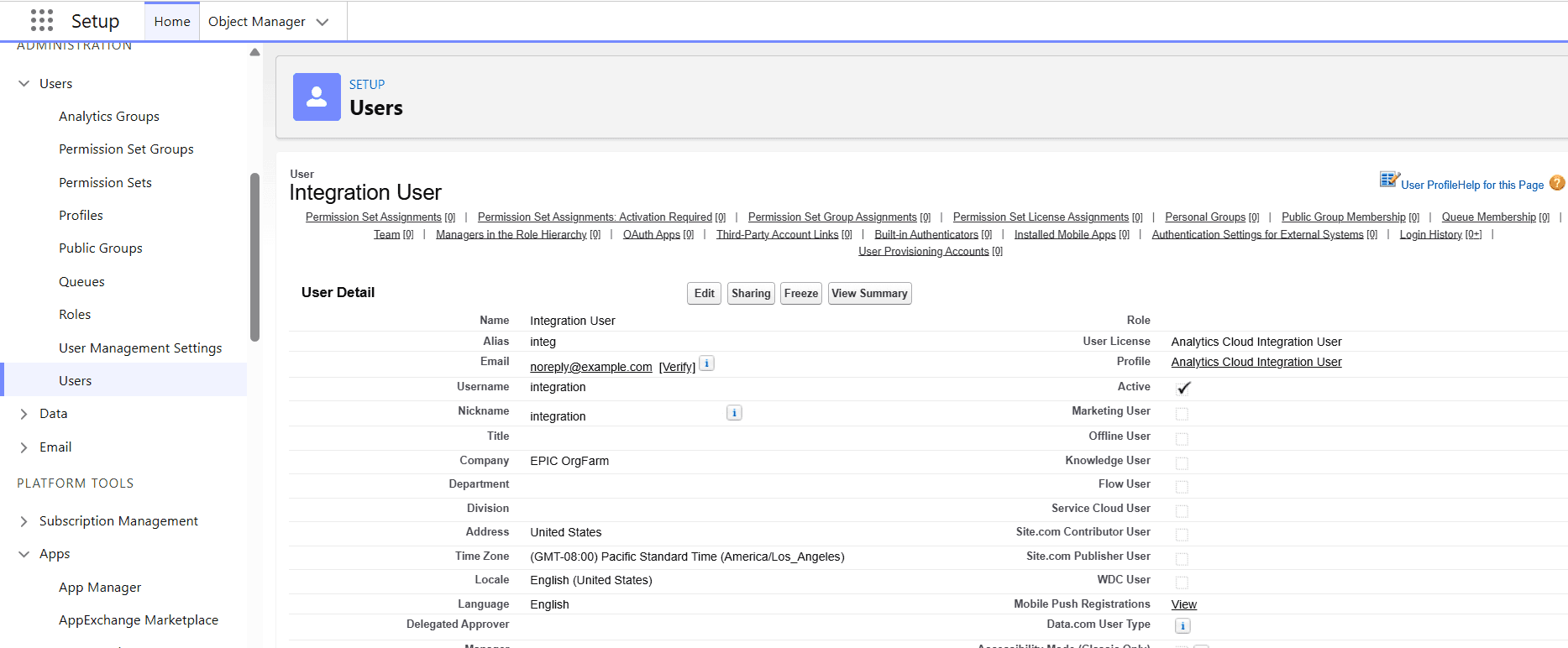
Step 2: Open the User Record and Freeze
Click on the username of the user you want to freeze. On the user detail page, you will see the Freeze option available. Click Freeze to restrict the user's login access immediately.
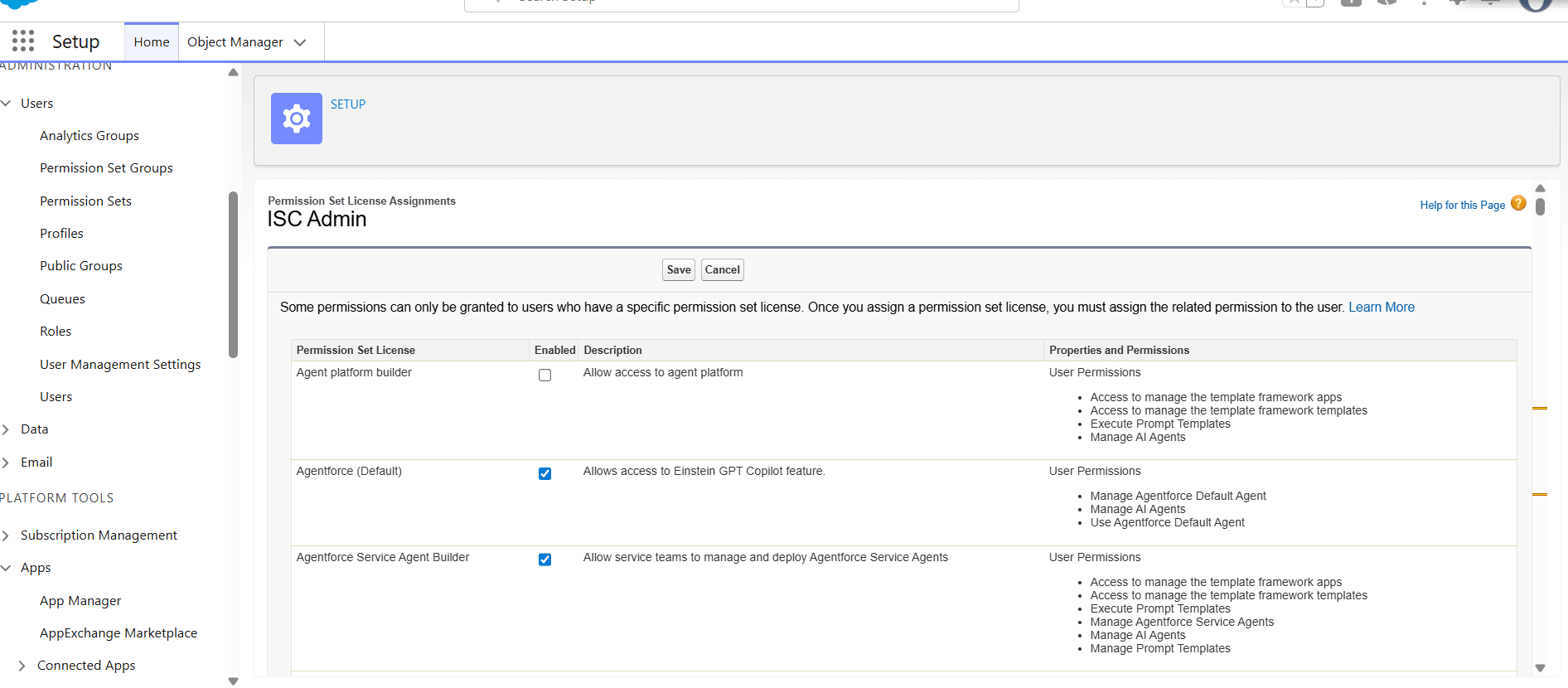
Required: Permission Set License Assignments
Before performing Freeze or Unfreeze operations via API (which is required for SailPoint integration), you must ensure the user has the correct Permission Set License Assignments configured. Two specific user-level permissions are required:
Required User Level Permissions
Field Service Standard
Salesforce API Integration
How to Assign Permission Set Licenses
Open the User Details page in Salesforce
Scroll down to Permission Set License Assignments
Click Edit Assignments
You will be navigated to the Permission Set License Assignments User Level list
Select both "Field Service Standard" and "Salesforce API Integration"
Click Save
SailPoint ISC Integration: The IsFrozen Attribute
Account Schema in SailPoint ISC
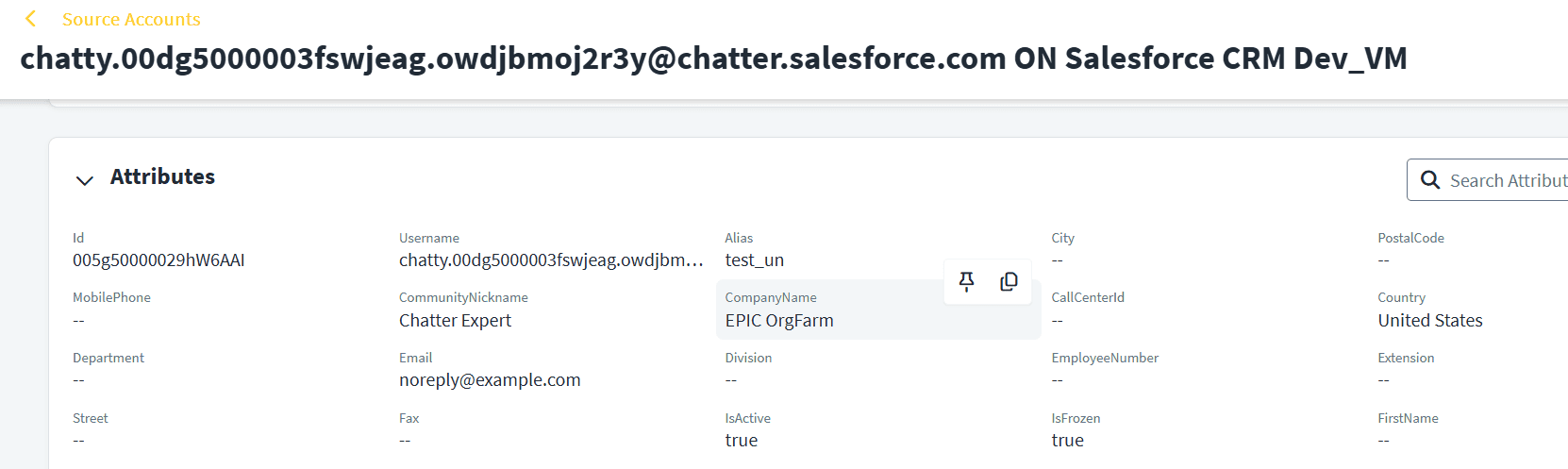
SailPoint ISC connects to Salesforce as a source and aggregates account attributes. The key attribute for freeze functionality is IsFrozen — a boolean field in the Salesforce account schema that reflects the current freeze state of the user.
IsFrozen = true → Account is Frozen (user cannot log in)
IsFrozen = false → Account is Active (user can log in normally)
Account Schema Configuration
The following screenshots show the IsFrozen attribute as configured in the SailPoint ISC Salesforce source account schema.
How Aggregation Updates the IsFrozen Attribute
When a Salesforce account aggregation runs in SailPoint ISC, the IsFrozen attribute is pulled from Salesforce and stored against the identity's account record.
Test Validation
The test user — chatty.00dg5000003fswjeag.owdjbmoj2r3y@chatter.salesforce.com — was used to validate the freeze/unfreeze behavior:
• Before aggregation: IsFrozen attribute was empty (null)
• After freezing in Salesforce and running aggregation: IsFrozen = true
• After unfreezing in Salesforce and running aggregation: IsFrozen = false
Automating Freeze / Unfreeze via SailPoint ISC Workflow
Why Automate with SailPoint ISC?
SailPoint ISC Workflow automation enables organizations to:
• Trigger freeze actions automatically based on identity lifecycle events
• Remove human dependency from time-sensitive access revocation
• Maintain a complete audit trail of all freeze and unfreeze operations
• Integrate freeze actions into broader mover, leaver, or joiner workflows
• Ensure consistent policy enforcement across all Salesforce accounts
Workflow Architecture
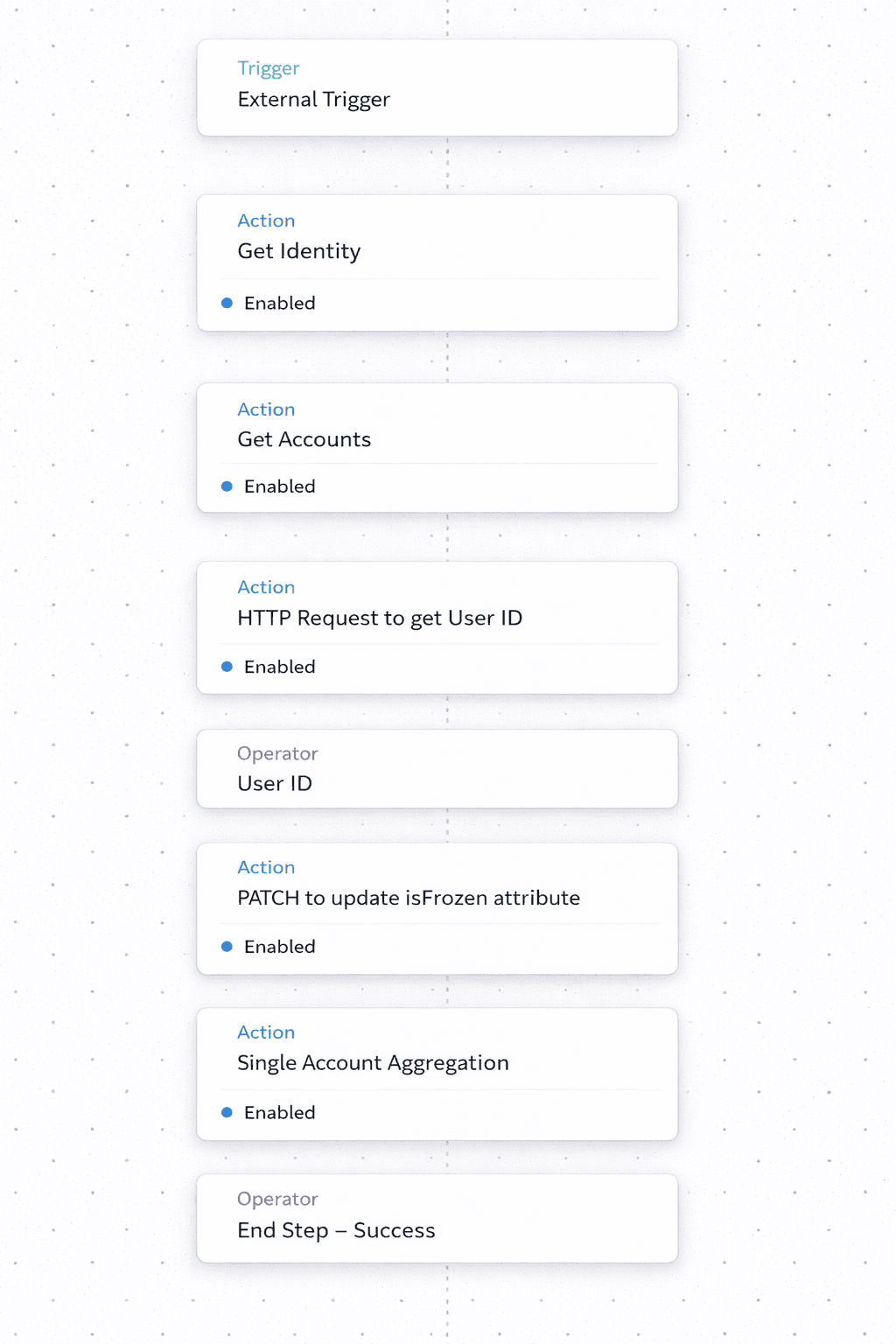
The SailPoint ISC workflow for automating Salesforce Freeze uses the HTTP Request action to call the Salesforce REST API. Here is the high-level workflow architecture:
HTTP Request Action Configuration
The HTTP Request action in SailPoint ISC is configured to call the Salesforce UserLogin API endpoint with the IsFrozen payload. The workflow dynamically resolves the Salesforce user ID from the identity attributes and constructs the API call at runtime.
Key Configuration Points
Method: PATCH
URL: SailPoint ISC API URL
Authentication: OAuth 2.0 with client id and secret
Request Body: Dynamic JSON with IsFrozen set to true or false
{ "IsFrozen": true }
Conclusion
The combination of salesforce’s freeze option capability and SailPoint ISC workflow creates a automation, real – time access governance solution. By mapping the IsFrozen attribute in the account schema it leverages HTTP request action in workflow, organizations can enforce access controls automatically triggered by any identity lifecycle event. This approach overcomes manual process, immediate response to access risks and suspicious login activity.
Stay tuned to our blog to see more posts about
Sailpoint products implementation and its related updates.
Stay tuned to our blog to see more posts about SailPoint products implementation and its related updates.
Category:
Category:
Security
Security
Automating Salesforce Account Freeze & Unfreeze Using SailPoint ISC Workflow
In identity governance, the most Important operation is controlling the user access from their account level. When an employee Moves to Leaver state, violates a policy, there is any change in Roll criteria Their cell Salesforce Account Should be restricted Using Freeze and unfreeze Option Present in Salesforce.
Using Salesforce Configuration, we can see about how freeze and unfreeze option natively worked on Salesforce. We can verify the attribute changes via SailPoint ISC account aggregation and we can explore how SailPoint works via Workflow automation using http request action to update the freeze and unfreeze Attribute.
Salesforce Account Freeze and Unfreeze
In Salesforce freeze and unfreeze option Is the build in future Inside user accounts. This is different from deactivating an account. The frozen account Prevents the user from logging in. This option won’t permanently remove their profiles license or associated accounts.
Why Freeze Instead of Deactivate?
Deactivating a Salesforce user will remove their license, profiles or an account. It may impact on their records, automation and integration. So, the best is the freezing option.
Immediately blocks login access
Preserves all user data, licenses, and configurations
Is fully reversible — the account can be unfrozen instantly
Does not trigger any license reallocation
Is ideal for temporary suspensions, investigations, or offboarding workflows
Real-World Use Cases
Employee is going through an HR investigation freeze the account without impact for data
Account shows suspicious login activity with the use of freeze option immediately pending review
Mover scenario when an employee changes from department and access needs re-evaluation
Automated access governance triggered by lifecycle events in SailPoint ISC
How to Freeze / Unfreeze a User in Salesforce
Step 1: Navigate to User Management
To freeze a user account in Salesforce, navigate to the user management section:
Go to Setup in Salesforce
Click on Users
Select Users again from the submenu
All users will be listed here

Step 2: Open the User Record and Freeze
Click on the username of the user you want to freeze. On the user detail page, you will see the Freeze option available. Click Freeze to restrict the user's login access immediately.

Required: Permission Set License Assignments
Before performing Freeze or Unfreeze operations via API (which is required for SailPoint integration), you must ensure the user has the correct Permission Set License Assignments configured. Two specific user-level permissions are required:
Required User Level Permissions
Field Service Standard
Salesforce API Integration
How to Assign Permission Set Licenses
Open the User Details page in Salesforce
Scroll down to Permission Set License Assignments
Click Edit Assignments
You will be navigated to the Permission Set License Assignments User Level list
Select both "Field Service Standard" and "Salesforce API Integration"
Click Save

SailPoint ISC Integration: The IsFrozen Attribute
Account Schema in SailPoint ISC
SailPoint ISC connects to Salesforce as a source and aggregates account attributes. The key attribute for freeze functionality is IsFrozen — a boolean field in the Salesforce account schema that reflects the current freeze state of the user.
IsFrozen = true → Account is Frozen (user cannot log in)
IsFrozen = false → Account is Active (user can log in normally)
Account Schema Configuration
The following screenshots show the IsFrozen attribute as configured in the SailPoint ISC Salesforce source account schema.
How Aggregation Updates the IsFrozen Attribute
When a Salesforce account aggregation runs in SailPoint ISC, the IsFrozen attribute is pulled from Salesforce and stored against the identity's account record.
Test Validation
The test user — chatty.00dg5000003fswjeag.owdjbmoj2r3y@chatter.salesforce.com — was used to validate the freeze/unfreeze behavior:
• Before aggregation: IsFrozen attribute was empty (null)
• After freezing in Salesforce and running aggregation: IsFrozen = true
• After unfreezing in Salesforce and running aggregation: IsFrozen = false

Automating Freeze / Unfreeze via SailPoint ISC Workflow
Why Automate with SailPoint ISC?
SailPoint ISC Workflow automation enables organizations to:
• Trigger freeze actions automatically based on identity lifecycle events
• Remove human dependency from time-sensitive access revocation
• Maintain a complete audit trail of all freeze and unfreeze operations
• Integrate freeze actions into broader mover, leaver, or joiner workflows
• Ensure consistent policy enforcement across all Salesforce accounts
Workflow Architecture
The SailPoint ISC workflow for automating Salesforce Freeze uses the HTTP Request action to call the Salesforce REST API. Here is the high-level workflow architecture:

HTTP Request Action Configuration
The HTTP Request action in SailPoint ISC is configured to call the Salesforce UserLogin API endpoint with the IsFrozen payload. The workflow dynamically resolves the Salesforce user ID from the identity attributes and constructs the API call at runtime.
Key Configuration Points
Method: PATCH
URL: SailPoint ISC API URL
Authentication: OAuth 2.0 with client id and secret
Request Body: Dynamic JSON with IsFrozen set to true or false
{ "IsFrozen": true }
Conclusion
The combination of salesforce’s freeze option capability and SailPoint ISC workflow creates a automation, real – time access governance solution. By mapping the IsFrozen attribute in the account schema it leverages HTTP request action in workflow, organizations can enforce access controls automatically triggered by any identity lifecycle event. This approach overcomes manual process, immediate response to access risks and suspicious login activity.
Stay tuned to our blog to see more posts about
Sailpoint products implementation and its related updates.
Category:
Security

