
Create bulk access profiles in SailPoint ISC for efficient user provisioning.

Create Bulk Access Profiles in SailPoint ISC

Date Posted:

29 Nov 2025

Category:

Security

Author:

Sandhiya

Create bulk access profiles in SailPoint ISC for efficient user provisioning.

Create Bulk Access Profiles in SailPoint ISC

Date Posted:

29 Nov 2025

Category:

Security

Author:

Sandhiya

Create bulk access profiles in SailPoint ISC for efficient user provisioning.

Create Bulk Access Profiles in SailPoint ISC

Date Posted:

29 Nov 2025

Category:

Security

Author:

Sandhiya

Introduction Of Bulk Access profile creation in SailPoint ISC

Loading multiple Access profiles to ISC through the community-developed ISC Extension in Microsoft Visual Studio Code.

Prerequisites

  • CSV file (UTF-8 format)

  • VS Code ISC Extension

  • Personal Access Token (PAT) or API Client with administrative privileges.

Setting up CSV file

Header fields:

  • Mandatory fields: name, owner, source

  • Boolean fields: enabled, requestable, commentsRequired, denialCommentsRequired

  • Other fields: description, approvalSchemes, revokeApprovalSchemes, entitlements.
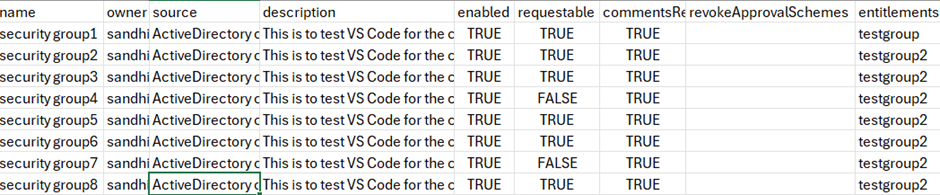
Header fields

File content

  • If one of the approvers is Access Profile Owner, then the value should be “OWNER” in the ‘approvalSchemes’ column.

  • Owner field should be filled with the account name of the identity.

  • Multiple approvers and entitlements should be specified inside double quotes and separated by semicolon.

File content

Setting up VS Code ISC Extension

  • Install ISC extension in VS code and connect to your tenant using access token.

  • Right click on Access Profiles and import the access profile CSV file (UTF-8 format).
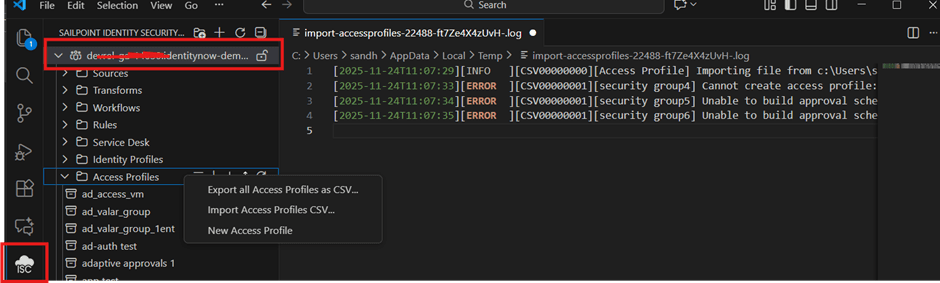
Access Profiles and import the access profile CSV file.

Errors and Trouble shoot

  • JWT token validation: Parsing error: This occurs when the JWT token is invalid or expired. Generate a new token and replace the outdated one

  • Parsing error of input string: If the CSV was saved from Excel, additional quotation marks ("”") may be inserted automatically. Open the file in VS Code or Notepad and remove the extra quotes before importing.

  • Access_Profile with name already exists: This happens when an access profile with the same name is already present. To update an existing access profile, choose ‘Create or Update’ during import instead of ‘Only Create’.

Error:Access_Profile with name already exists.

Viewing imported Access profiles inside tenant

Click View Details on the Access Profile card to review the settings that were provided in the CSV file.
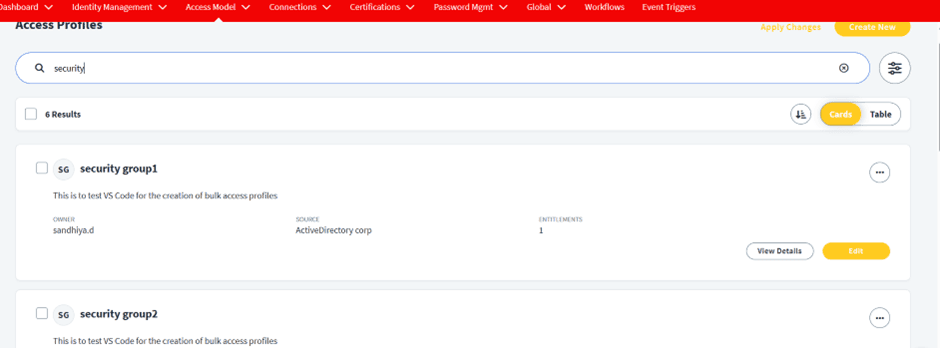
Viewing imported Access profiles inside tenant.

Introduction Of Bulk Access profile creation in SailPoint ISC

Loading multiple Access profiles to ISC through the community-developed ISC Extension in Microsoft Visual Studio Code.

Prerequisites

  • CSV file (UTF-8 format)

  • VS Code ISC Extension

  • Personal Access Token (PAT) or API Client with administrative privileges.

Setting up CSV file

Header fields:

  • Mandatory fields: name, owner, source

  • Boolean fields: enabled, requestable, commentsRequired, denialCommentsRequired

  • Other fields: description, approvalSchemes, revokeApprovalSchemes, entitlements.

Header fields

File content

  • If one of the approvers is Access Profile Owner, then the value should be “OWNER” in the ‘approvalSchemes’ column.

  • Owner field should be filled with the account name of the identity.

  • Multiple approvers and entitlements should be specified inside double quotes and separated by semicolon.

File content

Setting up VS Code ISC Extension

  • Install ISC extension in VS code and connect to your tenant using access token.

  • Right click on Access Profiles and import the access profile CSV file (UTF-8 format).

Access Profiles and import the access profile CSV file.

Errors and Trouble shoot

  • JWT token validation: Parsing error: This occurs when the JWT token is invalid or expired. Generate a new token and replace the outdated one

  • Parsing error of input string: If the CSV was saved from Excel, additional quotation marks ("”") may be inserted automatically. Open the file in VS Code or Notepad and remove the extra quotes before importing.

  • Access_Profile with name already exists: This happens when an access profile with the same name is already present. To update an existing access profile, choose ‘Create or Update’ during import instead of ‘Only Create’.

Error:Access_Profile with name already exists.

Viewing imported Access profiles inside tenant

Click View Details on the Access Profile card to review the settings that were provided in the CSV file.

Viewing imported Access profiles inside tenant.

Stay tuned to our blog to see more posts about

Sailpoint products implementation and its related updates.

Stay tuned to our blog to see more posts about

Sailpoint products implementation and its related updates.

Category:

Security

Stay tuned to our blog to see more posts about

Sailpoint products implementation and its related updates.

Stay tuned to our blog to see more posts about

Sailpoint products implementation and its related updates.

Category:

Category:

Security

Security

Get your

Tailored Quote for your

Organisation

Get your

Tailored Quote for your

Organisation

Introduction Of Bulk Access profile creation in SailPoint ISC

Loading multiple Access profiles to ISC through the community-developed ISC Extension in Microsoft Visual Studio Code.

Prerequisites

  • CSV file (UTF-8 format)

  • VS Code ISC Extension

  • Personal Access Token (PAT) or API Client with administrative privileges.

Setting up CSV file

Header fields:

  • Mandatory fields: name, owner, source

  • Boolean fields: enabled, requestable, commentsRequired, denialCommentsRequired

  • Other fields: description, approvalSchemes, revokeApprovalSchemes, entitlements.

Header fields

File content

  • If one of the approvers is Access Profile Owner, then the value should be “OWNER” in the ‘approvalSchemes’ column.

  • Owner field should be filled with the account name of the identity.

  • Multiple approvers and entitlements should be specified inside double quotes and separated by semicolon.

File content

Setting up VS Code ISC Extension

  • Install ISC extension in VS code and connect to your tenant using access token.

  • Right click on Access Profiles and import the access profile CSV file (UTF-8 format).

Access Profiles and import the access profile CSV file.

Errors and Trouble shoot

  • JWT token validation: Parsing error: This occurs when the JWT token is invalid or expired. Generate a new token and replace the outdated one

  • Parsing error of input string: If the CSV was saved from Excel, additional quotation marks ("”") may be inserted automatically. Open the file in VS Code or Notepad and remove the extra quotes before importing.

  • Access_Profile with name already exists: This happens when an access profile with the same name is already present. To update an existing access profile, choose ‘Create or Update’ during import instead of ‘Only Create’.

Error:Access_Profile with name already exists.

Viewing imported Access profiles inside tenant

Click View Details on the Access Profile card to review the settings that were provided in the CSV file.

Viewing imported Access profiles inside tenant.